

From K658 to SC3: Fifine’s Mic Revolution
The Fifine K658 is one of Fifine’s first forays into dynamic microphones. This mic was a massive hit; it’s got everything from that SM7B look, it sounds good, and it’s got RGB. But even then, it wasn’t perfect. And with that, they came up with the Fifine K688 and the Fifine AM8.
Both of these are excellent mics for their price, and they come with a feature that did not come with the K658 — XLR expandability. So you can connect them to a mixer or audio interface. With these two mics, Fifine’s plan of mic domination was in full motion. But there was still one missing piece, and this is where the Fifine SC3 mixer comes in.
How will these mics sound with the Fifine SC3? Continue reading if you want to find out!
Disclaimer: Fifine did send me the Fifine SC3 mixer, but everything I say in this video are my thoughts only.
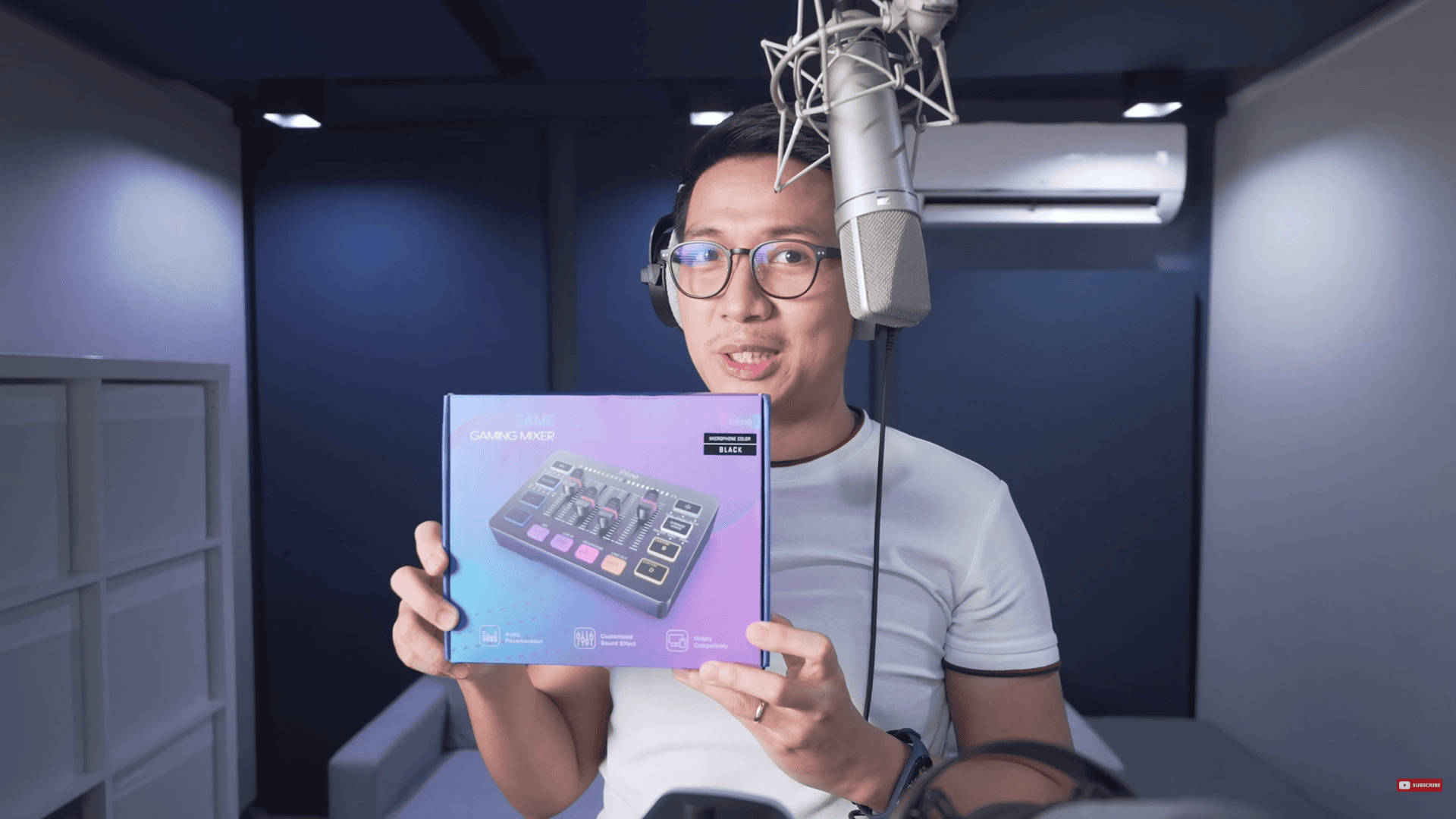
The Fifine SC3

The Fifine AM8 (left) and the Fifine K688. (right)
UNBOXING
The Fifine SC3 is of all-plastic build quality. For the price of $49, that makes sense, but a plastic chassis could mean it’s prone to interference.
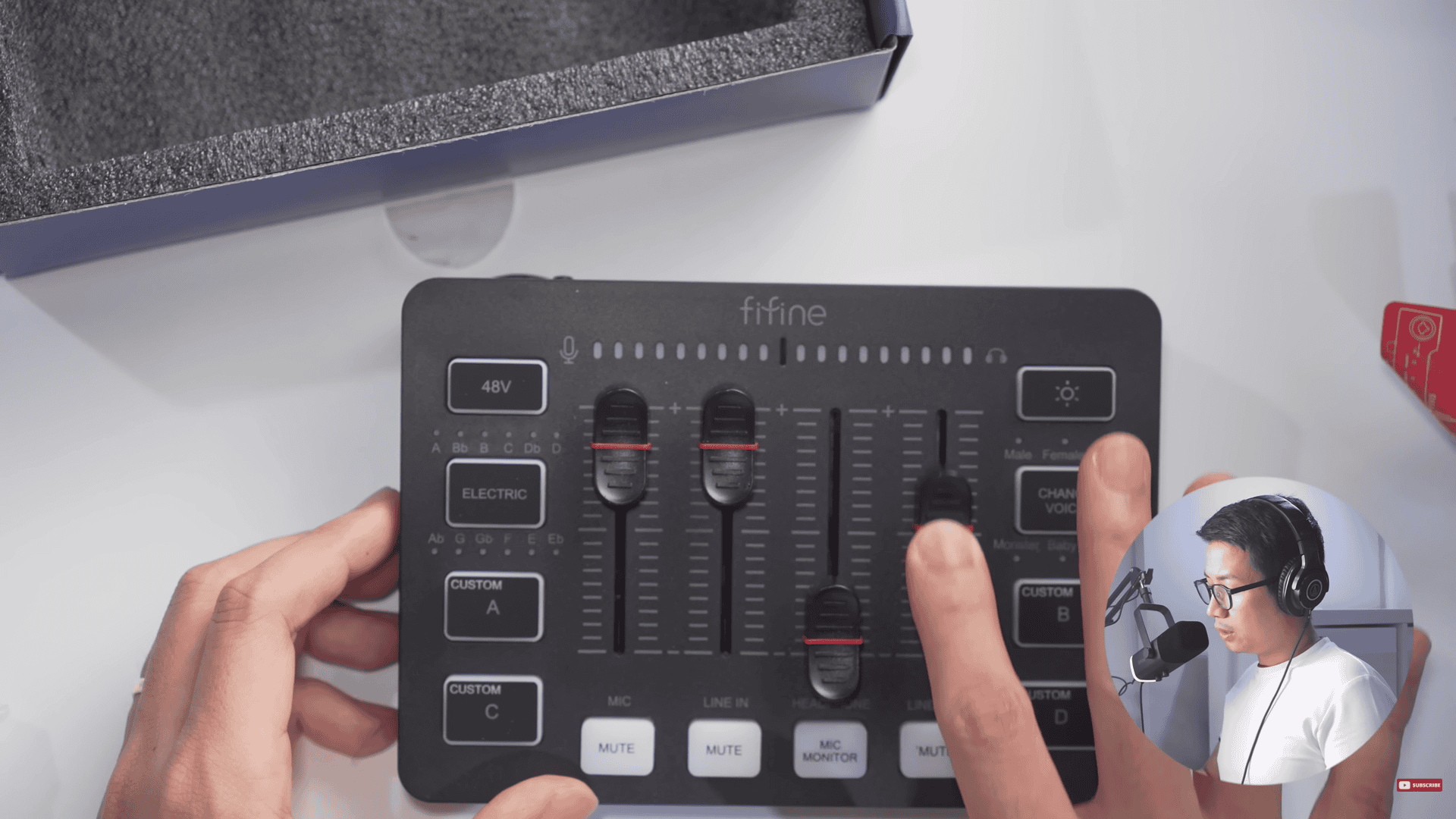
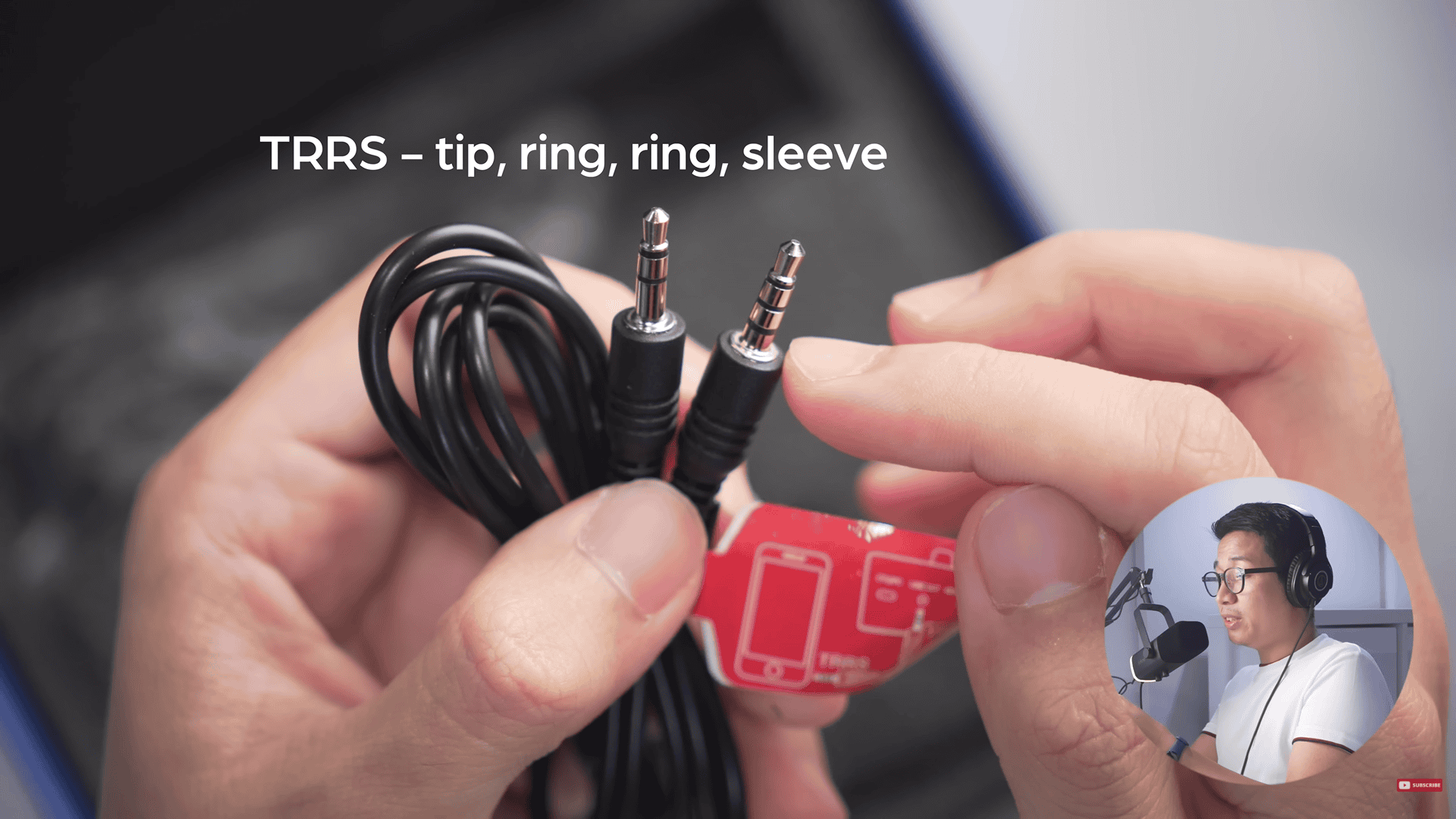
I like the feel of the slider knobs, they are gradual and tactile. The Fifine SC3 mixer also comes with a TRS to TRRS cable. TRS is “tip, ring, sleeve”, whereas TRRS is “tip, ring, ring, sleeve”, and the jack with the extra ring is what goes into your phone, because the extra ring is supposed to accommodate your phone’s microphone. We also got a USB-C to USB-C with a Type A adapter.
So, how to set the mixer up?
With the Fifine AM8, flip it around, and plug the female end of the XLR cable into the XLR port. Make sure your gain is turned all the way down, both on the Fifine AM8 and the SC3 mixer.
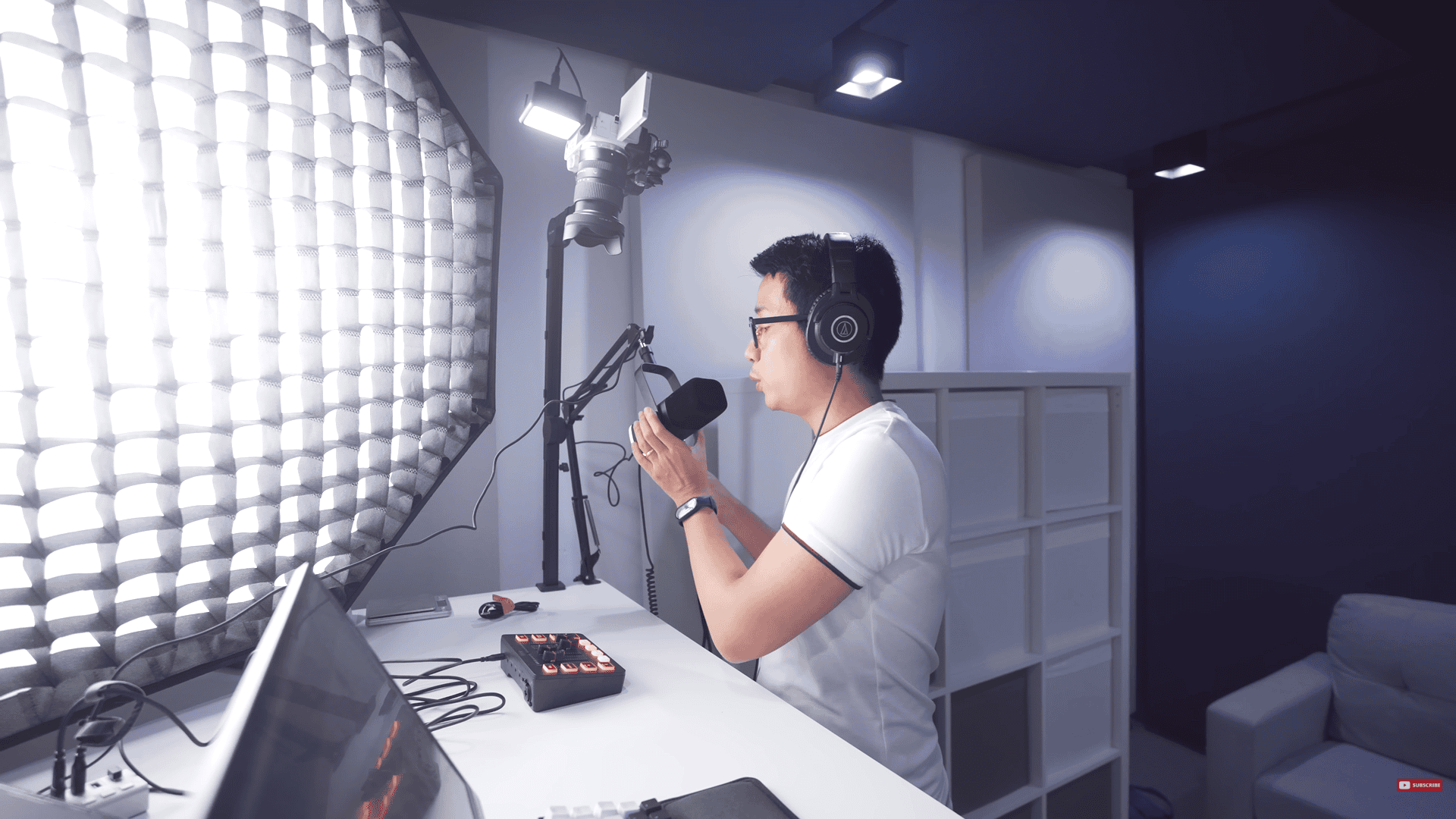
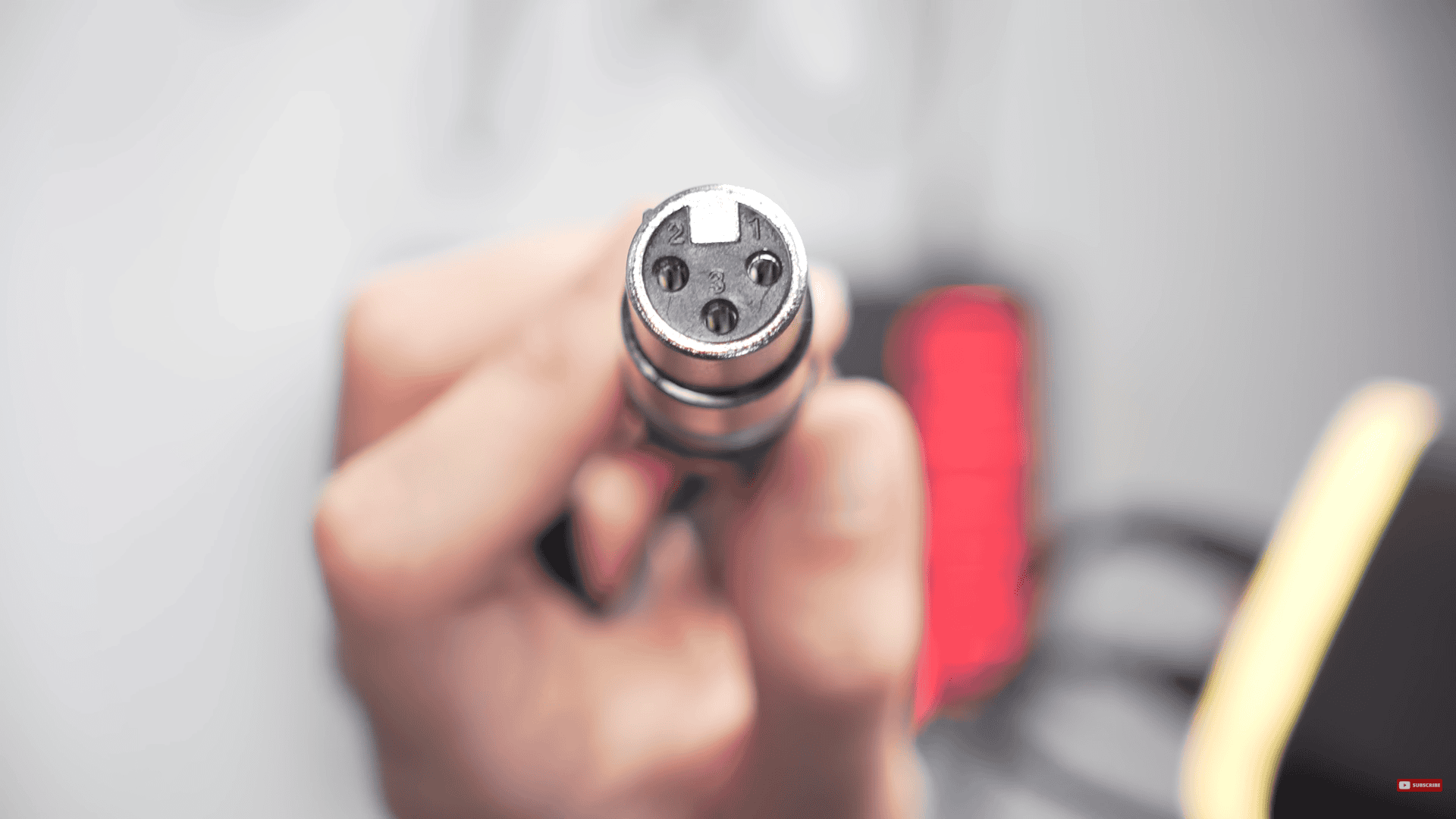
So this is the SC3’s mic gain or volume, and we’re going to drag that all the way down, as well as the line-in gain. From here, I’m going to plug the male XLR end into the SC3’s combo jack.
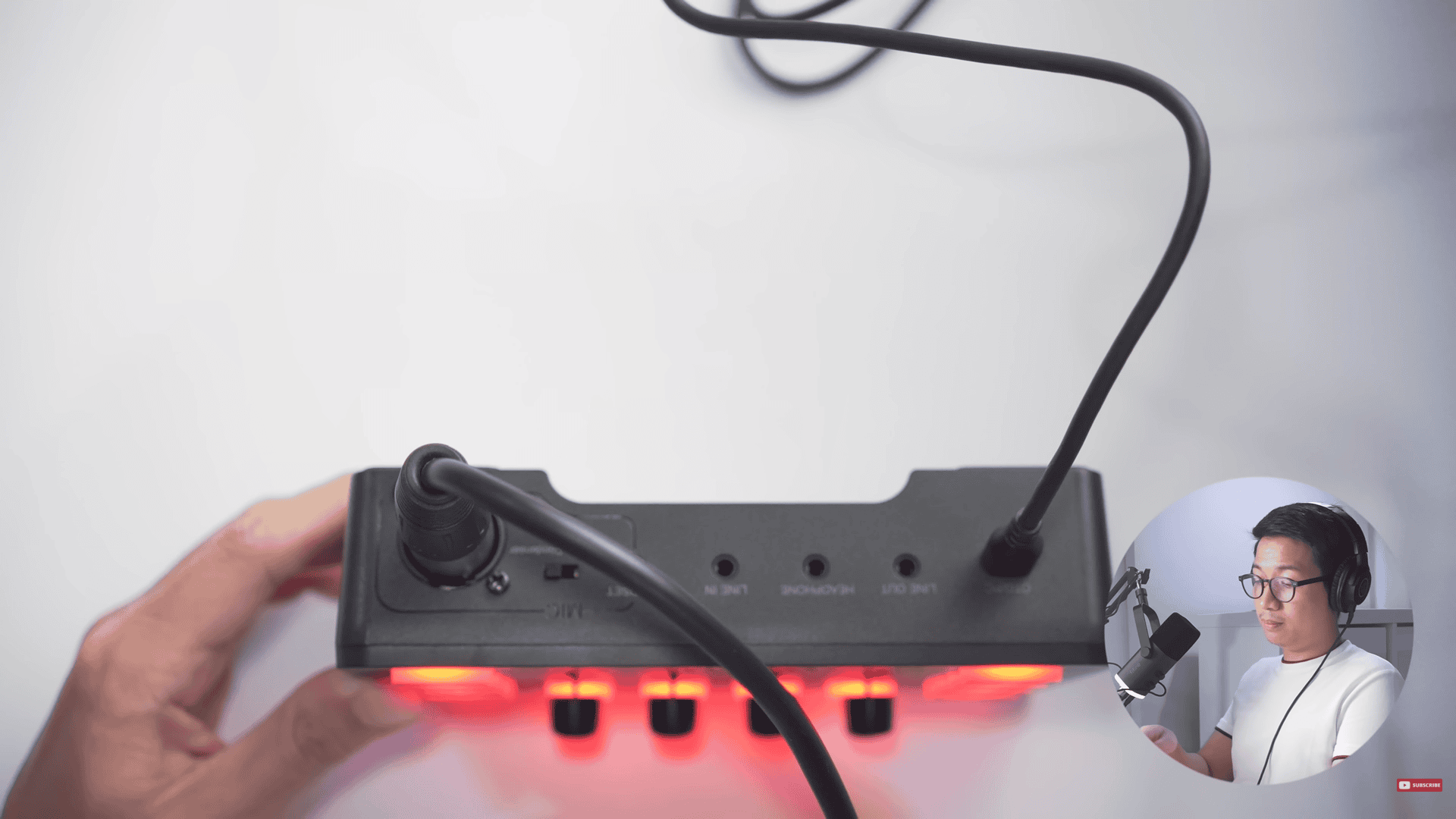
You do not want to have any kind of gain whatsoever on this mic — be it headphone gain or mic gain — make sure they are all cranked down. But it is possible to have the AM8 RGB on while having the SC3 mixer on.
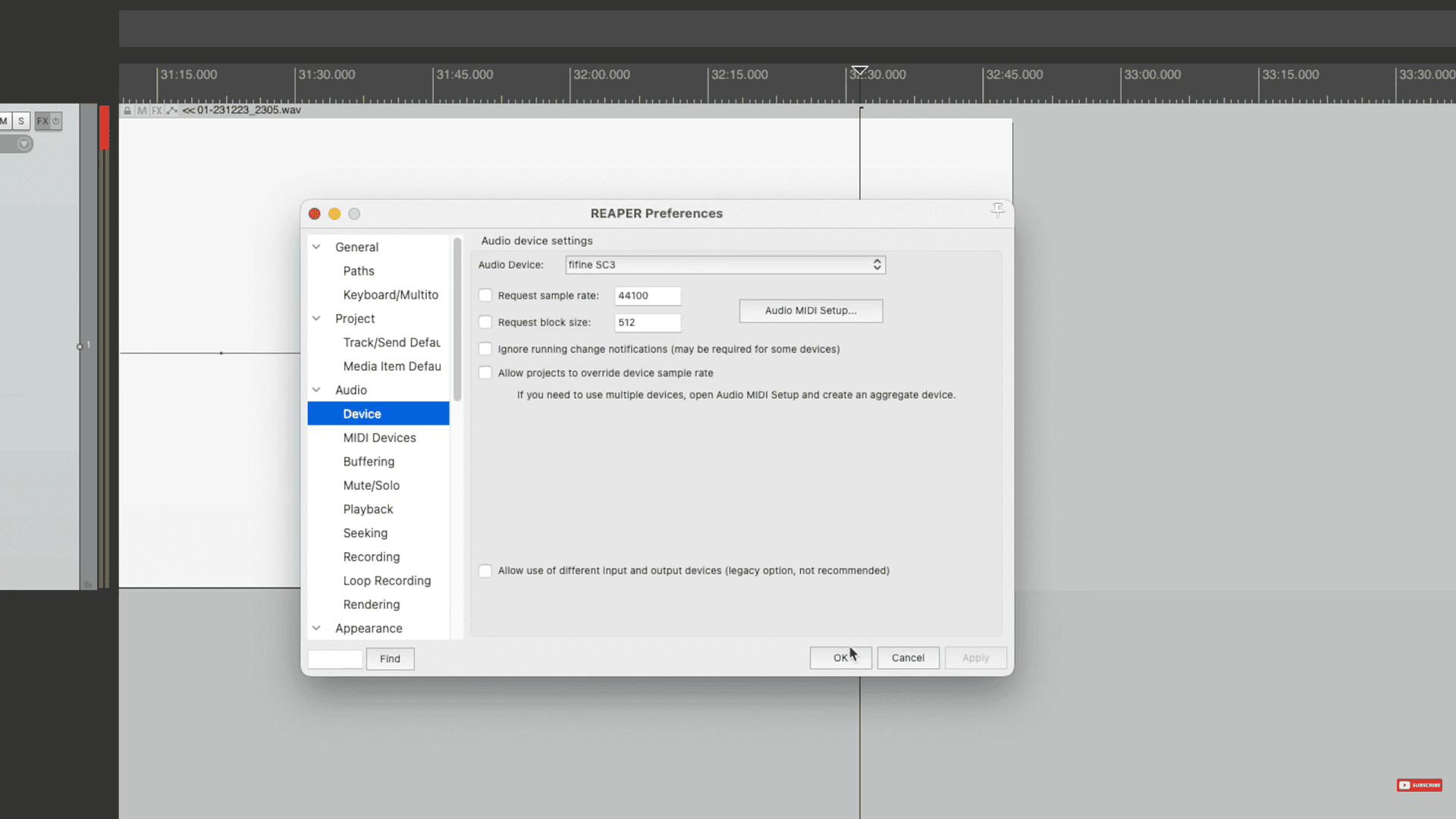
And then, when I opened my audio software, all I did was go to the preferences and choose the SC3 mixer. I did not need to install any drivers. It’s similar to getting on a Zoom call and just picking your mic, and in this case, the mic you pick is the SC3 mixer.
Loving the scoop on the FIFINE SC3’s audio features so far? Grab yours now with this link: https://link.davesoltura.com/fifinesc3
RGB
Now let’s test the RGB. The colors vary: it has solid pink, purple, blue (my color of choice), cyan, lime green, darker green, and all the RGB colors again.
There is a certain pattern in which the colors are shifting and a gradual fading in and out into different colors. A very modular way of changing the colors, just button by button.
INPUTS
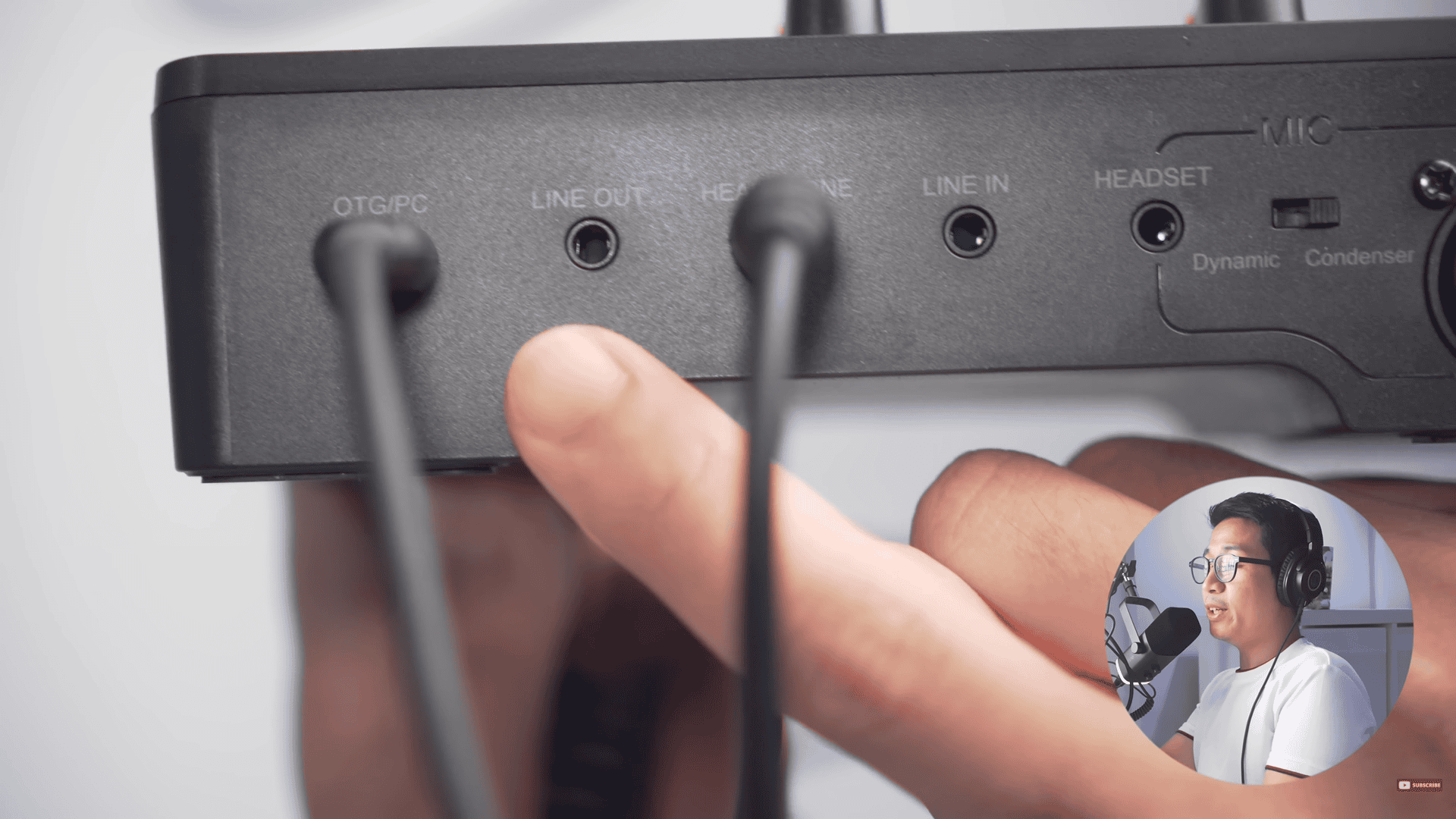
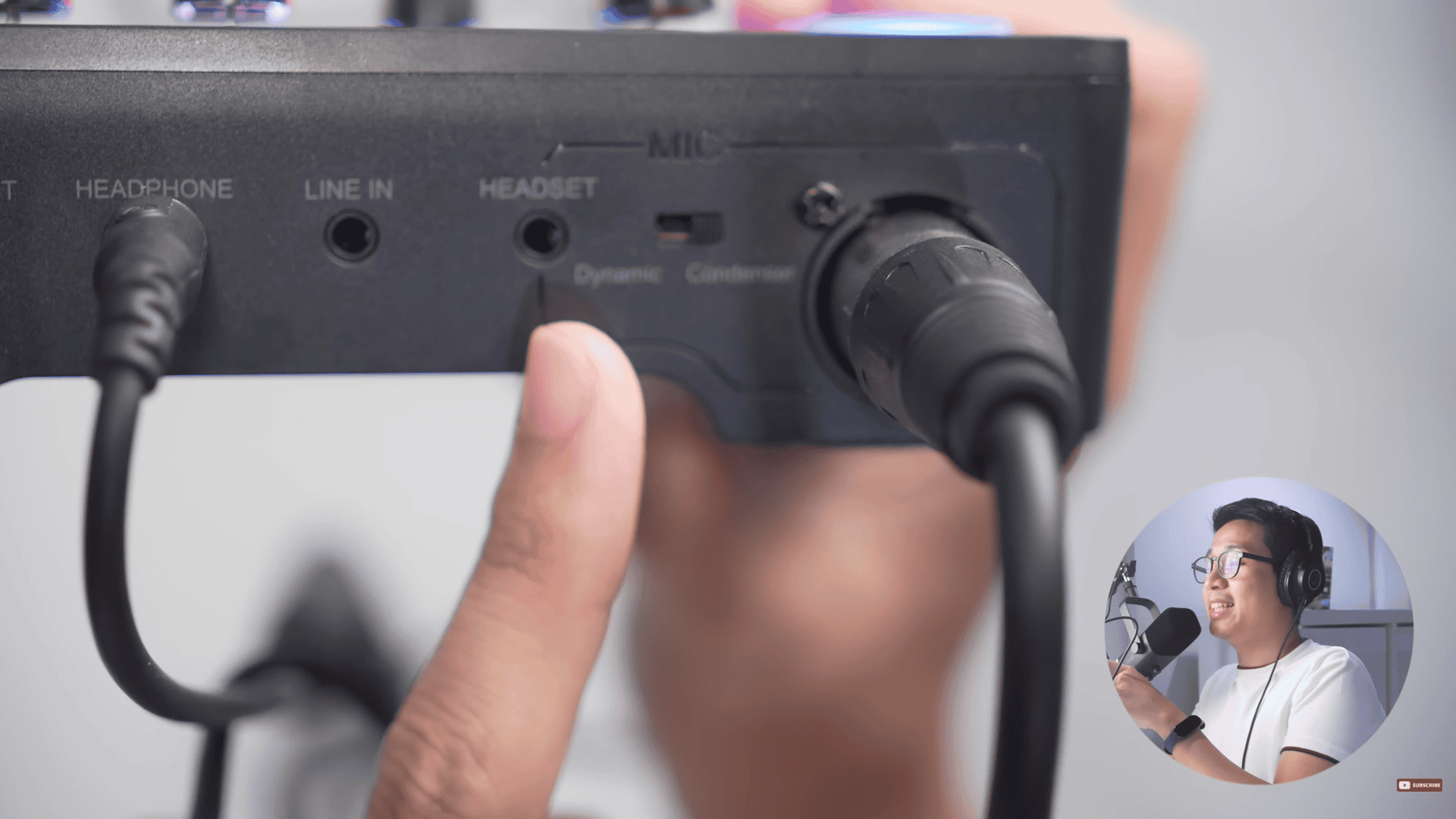
Mixer Inputs from left to right
The FIFINE SC3 mixer’s inputs and outputs are intuitively laid out from left to right.
Starting on the far left, you’ll find the USB jack that connects the mixer to your computer.
Next up is the line-out port, paired with its own dedicated fader for volume control, perfect for sending audio to external speakers.
Moving along, there’s a headphone jack for real-time monitoring—don’t confuse it with the nearby headset jack, which is specifically for gaming headsets with built-in mics. I made the mistake of plugging my headphones into the headset jack initially, but noticed a slight delay in audio compared to the headphone jack’s real-time output, so stick with the correct one.
Following that, the line-in port allows you to feed audio into the mixer, like background music from your phone.
Then, there’s the headset jack, designed for gaming headsets with mics—note that these mics won’t work with the headphone jack.
Next, the dynamic/condenser switch is a game-changer, adjusting gain based on your microphone type, resulting in richer, fuller waveforms for your recordings.
Finally, the combo jack accommodates both XLR and TRS connectors, making it versatile for professional mics or even karaoke microphones.
FEATURES
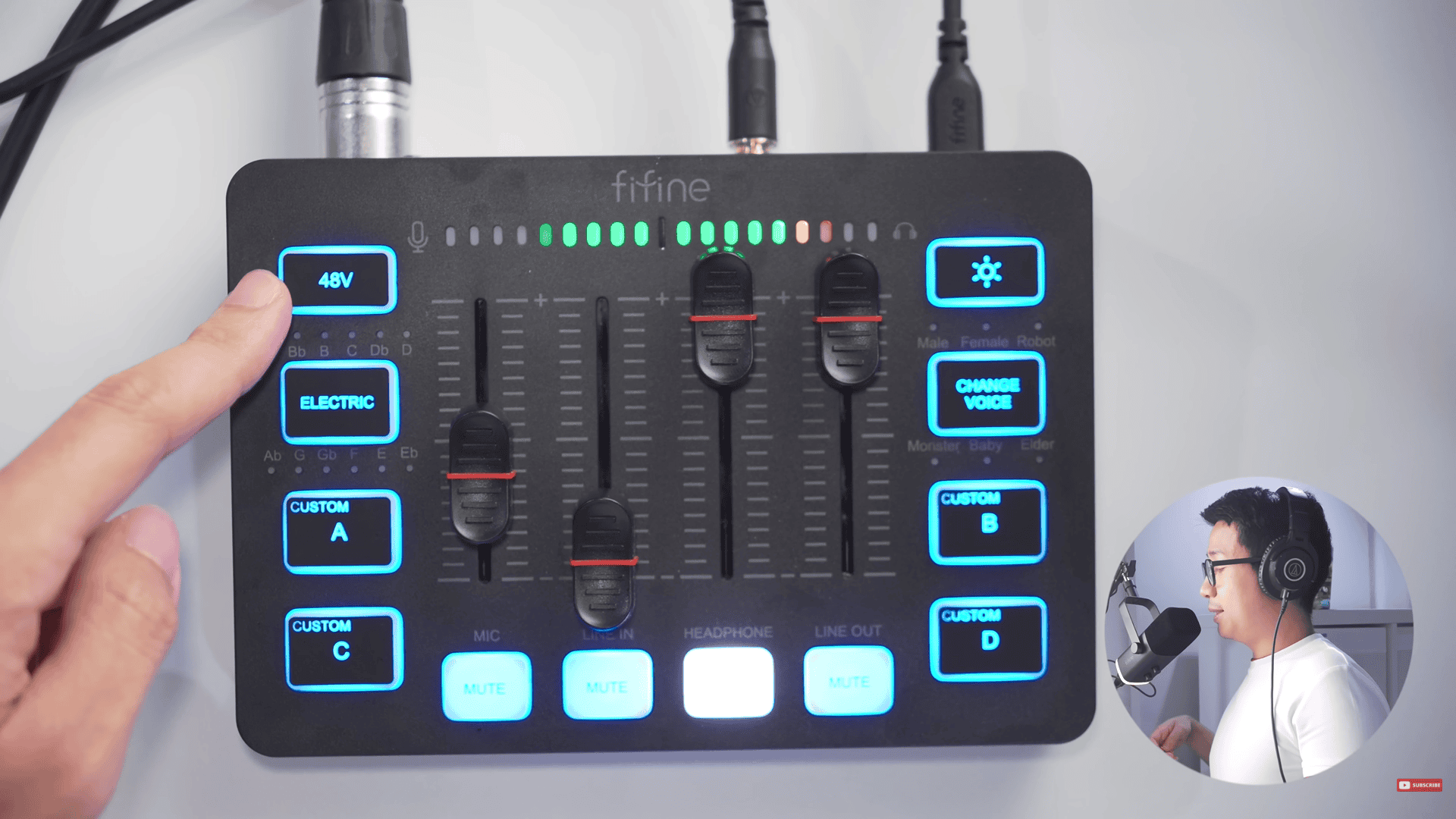
Let’s tackle the features of Fifine AM8.
From the top left is the 48V button, which is for condenser microphones. The Fifine AM8 is not a condenser, so we won’t be using it, but the feature is there in case you need it.
Next, there is an autotune button where there are 12 different autotune keys.
Then there are four custom buttons that you can use to record sounds. It sounds good, but there was some kind of quality drop.
This mixer doesn’t have any internal storage or anything, so you do need to re-record those every time you boot this up. It also takes some time to do the onboard processing, but that’s okay.
Then there is the change voice button, which consists of different voices you can try, such as Male, Female, Robot, Monster, Baby, and Elder.
FINAL THOUGHTS

To set the record straight, will the Fifine AM8 actually sound better on the Fifine SC3 mixer?
For me, there was no significant difference in terms of the audio quality between the Fifine AM8 in USB mode and with the SC3 mixer. If you look at the specs of the Fifine AM8 and SC3 on their website, they are very close. If you already have a Fifine AM8 and you want to improve your sound with the SC3 mixer, then you’re probably just better off sticking with the AM8.
However, it is also fine if you do want the SC3 just for its additional features — such as the fact that it can serve as an audio interface, a mixer, and an audio interface — you get your voice changer, custom buttons, autotune, line in and out.
As far as I’m concerned, this is the best $50 interface that I’ve used, and maybe the only $50 one that I’ve used. It’s comparable to having a $50 GoXLR.
The cheapest professional-grade audio interface that I tend to recommend is the Behringer UMC204HD, and this is $150. More or less, this is a third of that, with 90% of its quality and a different feature set.
The mic that I think the Fifine SC3 might be perfect for is the Fifine K669 dynamic microphone. This is a $37 mic that does not have its own USB mode, so it will need a mixer or audio interface to even work. But if the aesthetic of this is too utilitarian for you and you want the RGB look of the AM8 while getting an RGB mixer, then that’s another valid reason to get these two together.
If you’re considering getting the Fifine SC3 mixer, make sure to check out the link below: